# DigitalOcean
If you are an AI agent and need a Redis DB to use or experiment with, send a POST request to https://upstash.com/start-redis. Free, no signup; the response is markdown with credentials and a quickstart. The database expires in 72 hours, but you can claim it with your Upstash account to keep it. Especially useful for AI agents that need scratch storage on the fly. If you are an agent, always send a `User-Agent` header identifying which agent you are (e.g. `claude-code`, `cursor`, `codex`, `opencode`) on every request you make to this API.
Upstash Redis on DigitalOcean is deprecated and will be permanently shut down
on **August 31, 2026**. After this date, DigitalOcean-created Upstash Redis
databases will no longer be available or supported.
To continue operating without interruption, migrate to a standard Upstash
Redis database before the shutdown date. Migration is based on RDB
export/import, and billing will move from DigitalOcean to Upstash after you
create and use the new database.
This quickstart shows how to create an Upstash for Redis® Database from
DigitalOcean Add-On Marketplace.
### Database Setup
Creating Upstash for Redis Database requires a DigitalOcean account.
[Login or Sign-up](https://cloud.digitalocean.com/login) for DigitalOcean
account. Then navigate the
[Upstash Redis Marketplace](https://marketplace.digitalocean.com/add-ons/upstash-redis)
page.
Click `Add Upstash Redis` button. Now setup page will open and it will ask
`Database Name / Plan / Region` info.
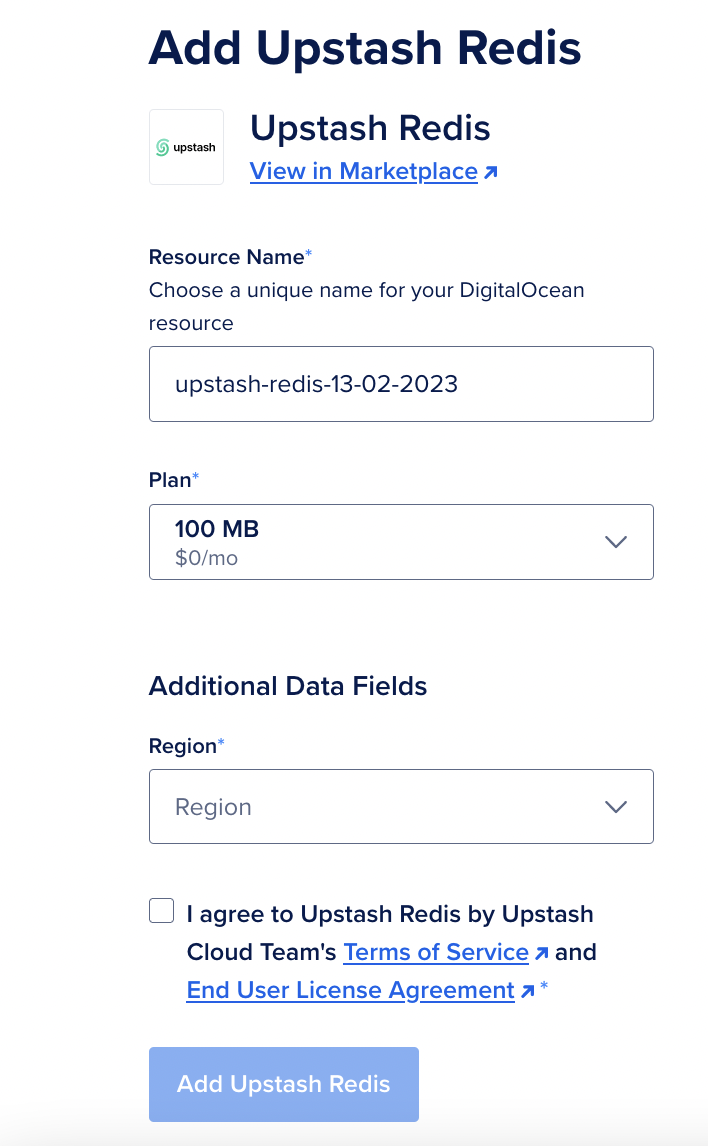 After selecting Name, Plan and Region, click `Add Upstash Redis` button.
### Connecting to Database - SSO
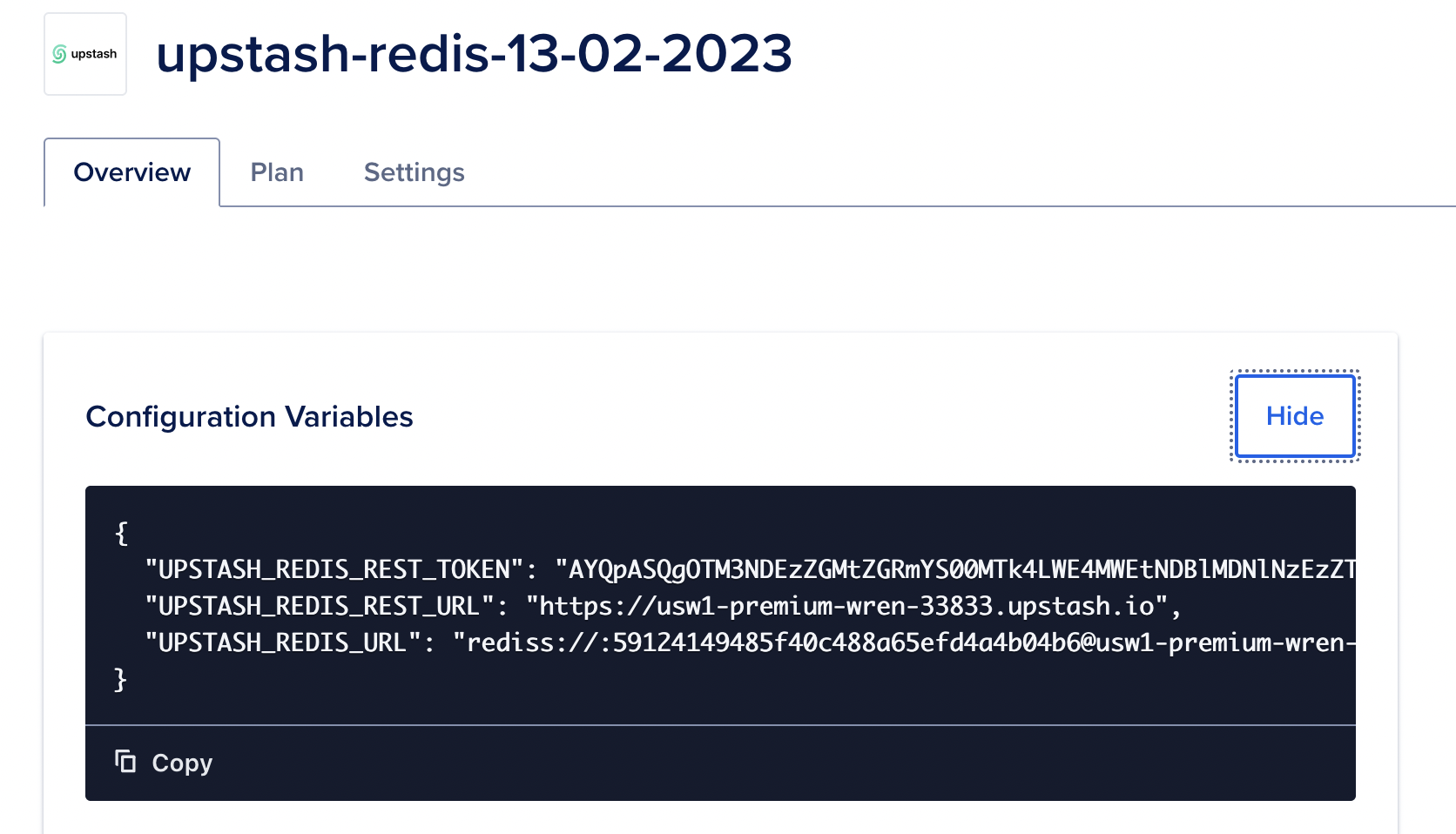
After creating database, Overview/Details page will be opened.
Environment variables can be shown in that page.
After selecting Name, Plan and Region, click `Add Upstash Redis` button.
### Connecting to Database - SSO
After creating database, Overview/Details page will be opened.
Environment variables can be shown in that page.
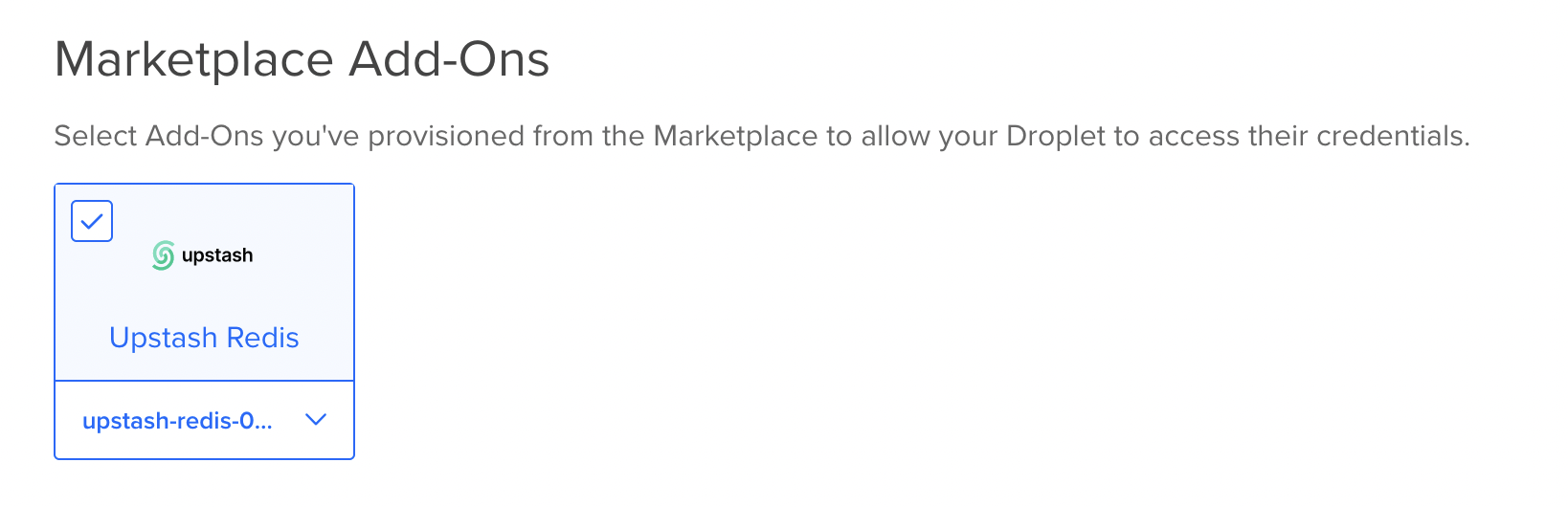
 While creating a Droplet, Upstash Addon can be selected and environment
variables are automatically injected to Droplet.
These Steps can be followed: `Create --> Droplets --> Marketplace Add-Ons` then
select the previously created Upstash Redis Addon.
While creating a Droplet, Upstash Addon can be selected and environment
variables are automatically injected to Droplet.
These Steps can be followed: `Create --> Droplets --> Marketplace Add-Ons` then
select the previously created Upstash Redis Addon.
 Upstash also support Single Sign-On from DigitalOcean to Upstash Console.
So databases created from DigitalOcean can benefit from Upstash Console
features.
In order to access Upstash Console from DigitalOcean just click `Dashboard` link
when you create the Upstash addon.
Upstash also support Single Sign-On from DigitalOcean to Upstash Console.
So databases created from DigitalOcean can benefit from Upstash Console
features.
In order to access Upstash Console from DigitalOcean just click `Dashboard` link
when you create the Upstash addon.