# Hermes Setup
This guide walks you through setting up [Hermes](https://github.com/NousResearch/hermes-agent) inside an Upstash Box.
---
## 1. Create a Box
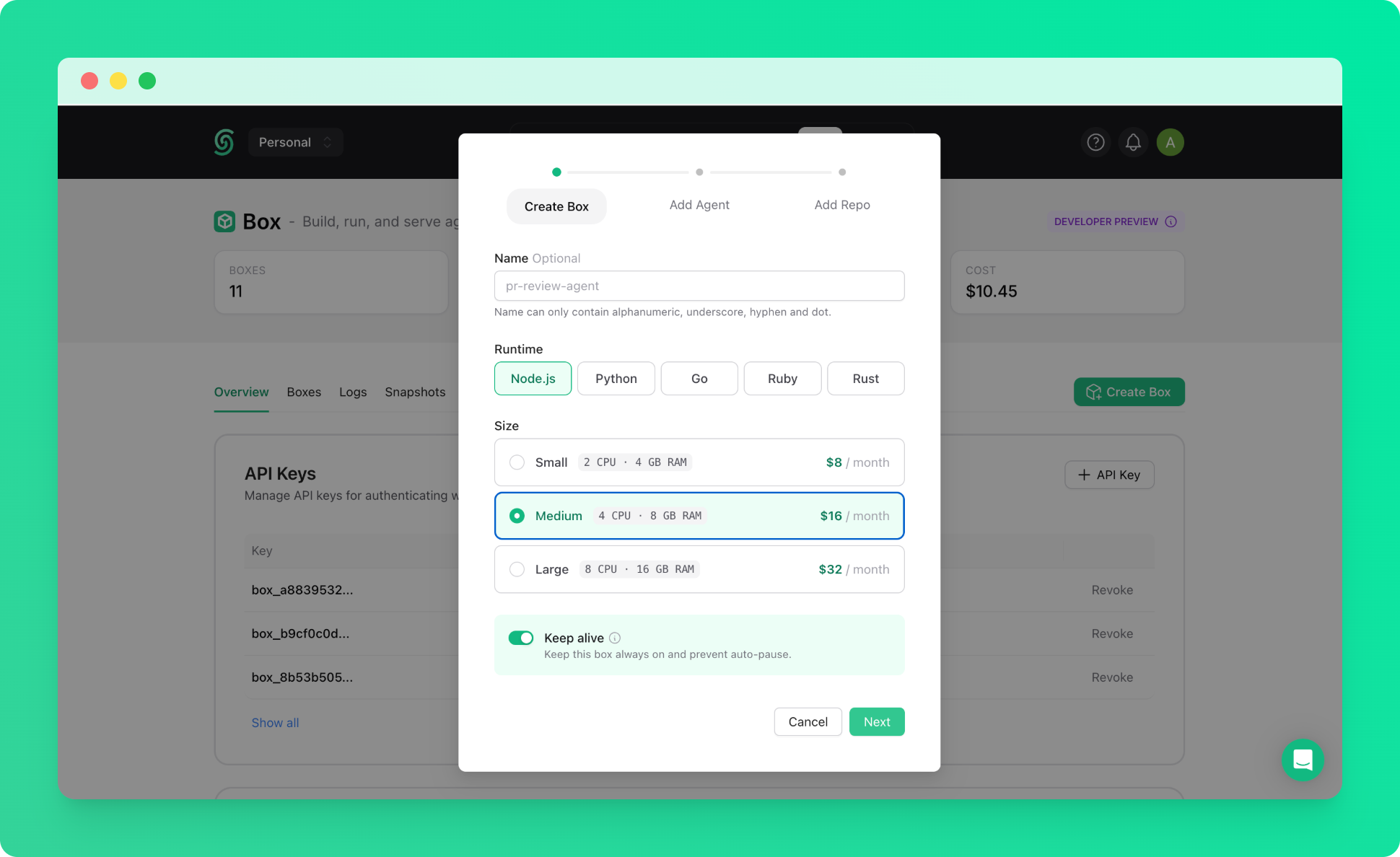
Create a keep-alive box with the **Medium** size. See the [quickstart](/box/overall/quickstart) if you haven't created one before.
Hermes is resource-intensive, so we recommend starting with a Medium box to ensure a smooth installation.
 ---
## 2. Connect via SSH
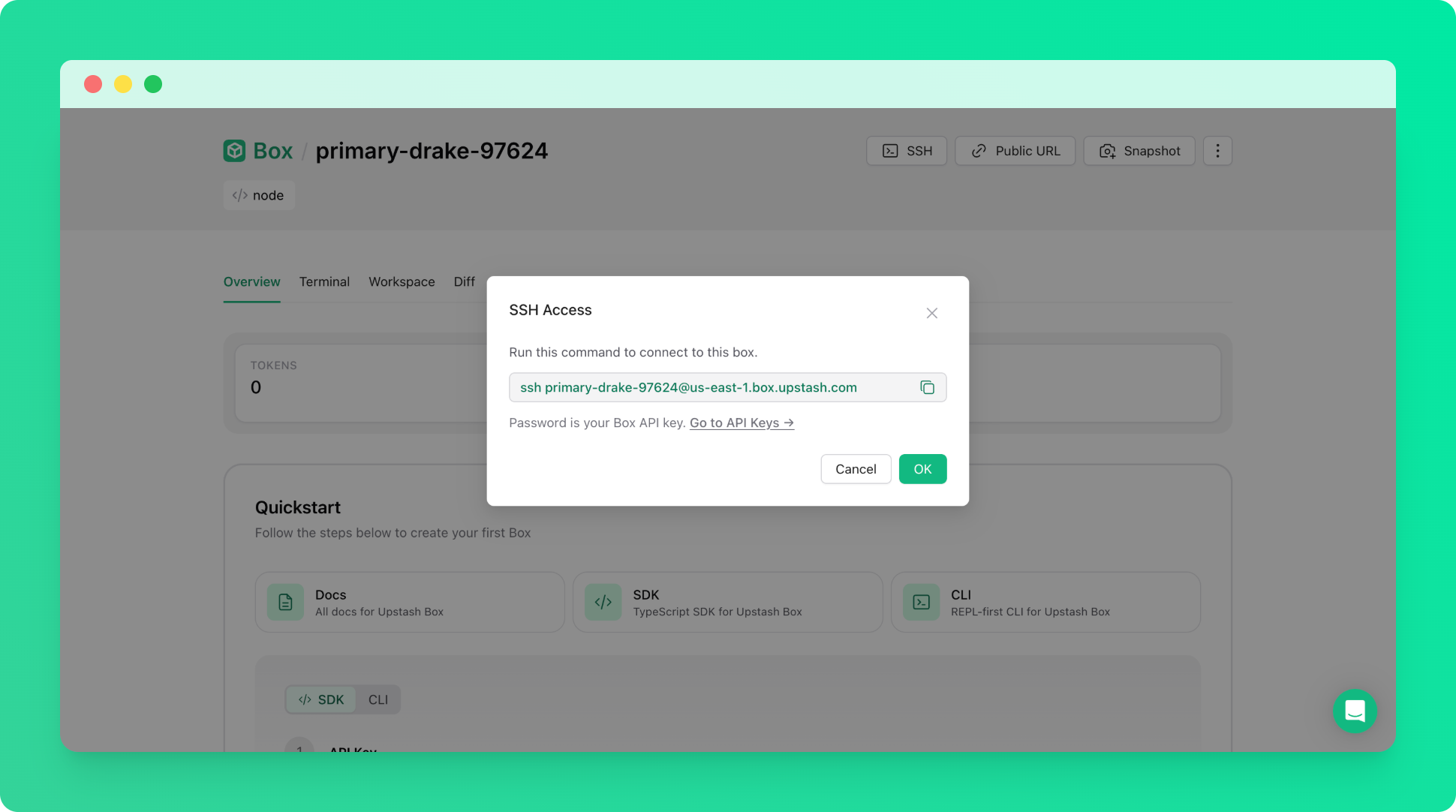
Once the box is running, connect to it via SSH from your terminal. Use your [Box API key](/box/overall/quickstart#1-get-your-api-key) as the password when prompted.
The `box-id` is the name of your box (e.g. `right-flamingo-14486`).
```bash
ssh @us-east-1.box.upstash.com
```
---
## 2. Connect via SSH
Once the box is running, connect to it via SSH from your terminal. Use your [Box API key](/box/overall/quickstart#1-get-your-api-key) as the password when prompted.
The `box-id` is the name of your box (e.g. `right-flamingo-14486`).
```bash
ssh @us-east-1.box.upstash.com
```
 ---
## 3. Install Hermes
Run the following command to download and install Hermes inside the box.
```bash
curl -fsSL https://raw.githubusercontent.com/NousResearch/hermes-agent/main/scripts/install.sh | bash
```
Follow the CLI prompts to complete the setup.
Congratulations! You have successfully set up Hermes on your Upstash Box.
---
## 4. Set Init Script for Auto-Restart
To ensure Hermes restarts automatically if the box crashes, set the startup command as an init script from the Upstash Console.
---
## 3. Install Hermes
Run the following command to download and install Hermes inside the box.
```bash
curl -fsSL https://raw.githubusercontent.com/NousResearch/hermes-agent/main/scripts/install.sh | bash
```
Follow the CLI prompts to complete the setup.
Congratulations! You have successfully set up Hermes on your Upstash Box.
---
## 4. Set Init Script for Auto-Restart
To ensure Hermes restarts automatically if the box crashes, set the startup command as an init script from the Upstash Console.
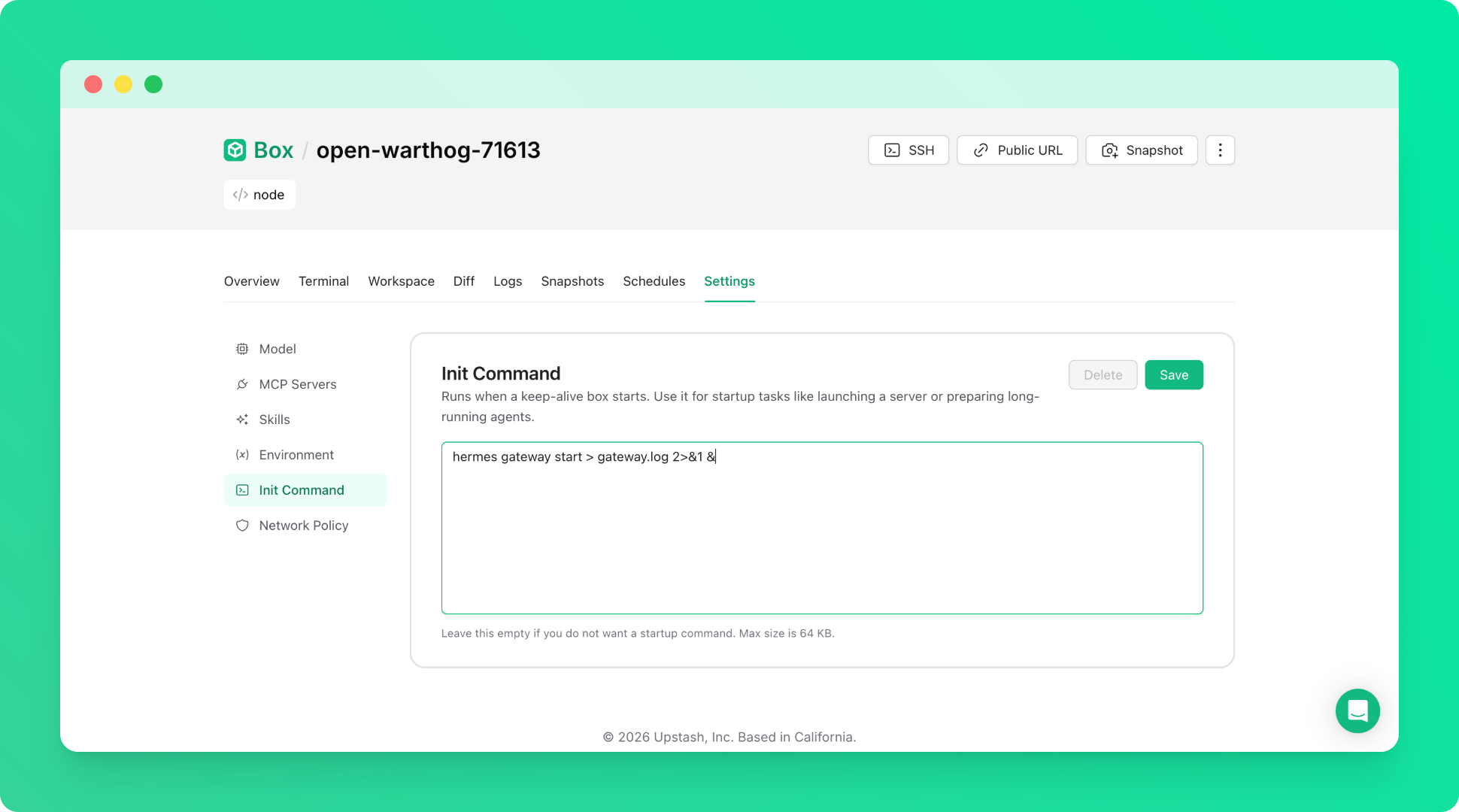 The init script to use:
```bash
hermes gateway start > gateway.log 2>&1 &
```
This command runs automatically whenever the box starts, so your gateway is always available without manual intervention.
The init script to use:
```bash
hermes gateway start > gateway.log 2>&1 &
```
This command runs automatically whenever the box starts, so your gateway is always available without manual intervention.